
There are now over 1700 Spooky2 Peptide presets, and finding anything in these presets can be a challenge. This article describes how to using the Search Spooky2 Peptides tool to find the exact preset that is right for you.
Here is the link to the tool: Search Spooky2 Peptides.
In this tool, you can most often just use the Anywhere field to search for some text. This field will search all the different parts of the peptide program — the title, the front comment, the frequencies, and the list of peptides at the end of the program. However, you can also search specific parts of the programs too.
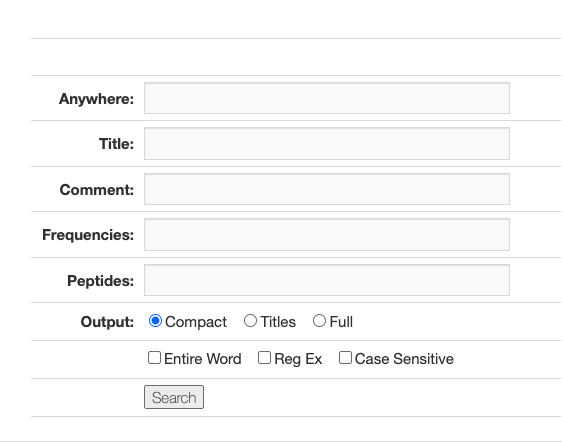
The Anywhere field will search for text in any of the fields of the program.
Title will restrain the search to just the title of the program.
Comment will search the comment field, which in the JW Peptides thread on the Spooky forum, is the text between the title and the frequencies.
Frequencies will search the frenquencies. This is more of an advanced search, as this frequencies are Molecular Weight frequencies. But you may want to see which peptide programs contain a particular sequence of frequencies.
Peptides will search the peptide list of the programs. Here you can use peptide names like BPC-157, TB-500, of GHK-Cu.
The Options change the behavior of the search. If the Entire Word checkbox is ticked, the text search for must match and entire word. For example, if you are looking for the word liver, you might end up finding the word deliver, which is not what you wanted. The Entire Word option makes sure that the word you search for in not included in a larger word.
The Reg Ex option allows you to do sophisticated (or complicated) pattern matching. Reg Ex stands for Regular Expressions, and in this case a specific kind called Perl Regular Expressions. It is beyond the scope of this document to explain how to use regular expression, but you can search the internet for perl regular expressions if you want to learn more.
The Case Sensitive option says that the word you find must be exactly the pattern you typed, including the case of the letters you used. By default this option is off, so if you search for term, this will match the following — term, Term, or TERM. If Case Sensitive is chosen, on one of those three words will match — term.
The Output radio button specifies how the search results will be printed. The default mode is Compact, which only shows the lines of the program that match one of the search terms. The Titles mode will display only the peptide program titles of the matches. The Full mode will print out the entire contents of the peptide program. Most often using the Compact and Title mode will be the most useful.
The Search button performs the search with the options and pattern you have provided. The output appear below the form. You may have to scroll down to see the results. The number of peptide programs found is given in green text above the form.
Advanced Search
In any text field, you type the text you want to search for in that field. By default, you are doing a plain text search, meaning that what you type is what you are going to find. If you type hello there, this will only match a program that has that exact text hello there. There are a few special characters you can use to enhance the search.
The first is an AND operator, using the characters && (two ampersand characters). So if you want to find a program that has both the terms breast and cancer in the program, you would use breast&&cancer. Don’t add extra spaces in this pattern, unless you specifically need those spaces to be in your result, rejecting the text that doesn’t have space. The previous pattern will match the terms breast cancer or cancer of the breast.
The second special character is for the OR operator, using the characters || (two vertical line characters). An example would be lung||liver. This matches a program that has either lung or liver in the program.
The third special character is for the NOT operator, using the characters ! (exclamation point). An example !liver. This matches a program that does not contain the term liver. The NOT operator must be at the beginning of the search term. In a complex search patter, the NOT operator may either be in the first character of the pattern, or directly after the && (AND) or the || (OR) operators.
You can combine these operators. The text lung||liver&&cancer is split to (lung OR liver) AND cancer. So this would match lung cancer or liver cancer. Note that the parentheses are to illustration the evaluation order only, you cannot use parentheses to force the evaluation order.The OR operator has higher precedence than the NOT operator, which has a higher precedence than the AND operator, meaning the OR terms are evaluated first before the NOT operator, which is evaluated before the AND operator.
This means that this search pattern — inflammation&&!lung||liver||stomach — based in the operator precedence, evaluates as (inflammation && (!(lung||liver||stomach)).
Combining Text Fields
If you put search terms into multiple text field, this will have the effect of reducing the search results, because the programs that match will have to satisfy all your search terms. For example, if you set Title to cancer, and Peptides to BPC-157, this will find the programs that have cancer in the title and also have BPC-157 in the peptide list.